- Open LMPT and click on League Play | Franchise Options from the Menu Bar.
- The YCL Constitution mandates that "LMPT Franchise File options for each franchise shall be set as follows: Include Rosters = On
Include Farm Rosters = On
Include Lineups = On
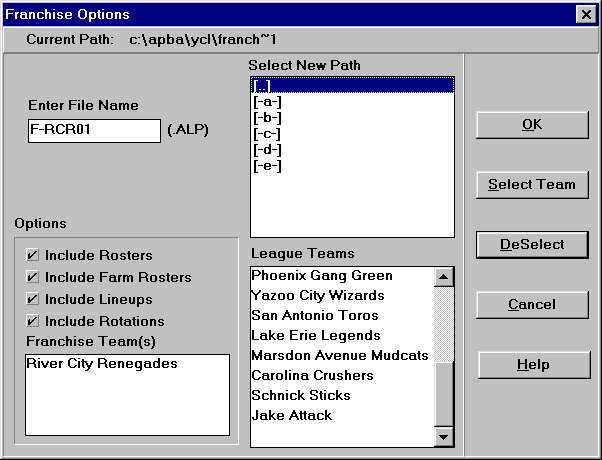
Include Rotations = On- At this point the "Franchise Options" dialog box will open. The first time it opens, you will have to click on Include Farm Rosters to add a checkmark (turn in "on") in its box. Once you save the Franchise Options the first time, these settings will be turned "on" forever.
- The next step is to locate your team's name in the "League Teams" list at the lower right of the dialog box. When you locate your team's name, click on it to highlight it, and then click on the Select Team button to move your team from the list to the box under "Options" on the left side of the dialog box.
- The first time it opens, the "Franchise Options" dialog box will will have F-WEEK1 entered in the "Enter File Name" box at the upper left side of it. Double-click on the word F-WEEK1 to highlight it, and type F-***01 into the box (replace *** with your team's abbreviation).
- The last step is to select the storage data path for saving your F-Files. When the "Franchise Options" dialog box opens, it will show the default data path in the "Current Path" section at the very top of the dialog box (in a grey area that you cannot type in). The default data path should look like this --- c:\bbw\u-ycl2k.wdd\org00001, assuming your BBWin folder is \bbw. If you want to save your F-files in that location, do nothing.
If you want to save your F-files in another location, use the "Select New Path" sub-window to locate the target folder. For example, on my PC, I store all my F-files in subfolders under c:\apba\ycl. I store my C-files in c:\apba\ycl\Commissioner Files (which appears in the sub-window as commis~1). I store my F-flies in c:\apba\ycl\Franchise Files (which appears in the sub-window as franch~1). Of course, you must create those folders on your PC using Windows Explorer, Norton Navigator, or whatever other File Manager you regularly employ to create and name folders BEFORE loading LMPT or they won't show up in the "Select New Path" sub-window when you browse in it.
If you want to change the default data path for your setup, click the [..] symbol in the "Select New Path" sub-window to browse up the data path until you locate your target folder. When you see your target folder, double-click it to lock it in as the Data Path. Observe that it has replaced the c:\bbw\u-ycl2k.wdd\org00001 in the grey area of the "Current Path" section at the very top of the dialog box.
Click the thumbnail at the left to see what my dialog box looks like after making the appropriate settings.
- When everything is the way you want it in the "Franchise Options" dialog box, click OK to save the settings and close the dialog box.
- Open LMPT and click on League Play | Create Franchise File from the Menu Bar.
- The "Franchise File Options" dialog box will open. It's contents will be whatever the settings you saved in the previous exercise and/or the last time you made any changes to your Franchise File Options.
- The highlight will be on the part of the filename following the F- in the "Enter File Name" box. All you have to do is type in the name of file for each appropriate series and condition. The first time you open the dialog, it will have whatever you saved as your default (in my example this would be F- RCR01). For my Series 1 default file, I would type (over the highlight) rcr01d in either upper or lower case (LMPT will capitalize the text). After reviewing my typing, I click OK to create the F-File in the defaulted data path. (You simply type in YOUR team's 3-character abbreviation and 01d to create your Series 1 Default F-File).
- After you click OK, the dialog box will close and you will receive a popup message confirming the creation of your F-File. The message box will say Franchise Transfer File Successfully Created and will have an OK box to click for you to acknowledge the successful creation.
- The next step is to send the file to the Commissioner as an e-mail attachment. How you go about attaching files to your e-mail program depends on your personal preferences and which e-mail program you use. The important thing for you to focus on at this point is REMEMBERING WHERE YOU INSTRUCTED LMPT TO SAVE YOUR FRANCHISE FILES. This is why I save only F-Files in my folder c:\apba\ycl\Franchise Files. That way, they always appear in sequential order and are not mixed up with the dozens of other files that live in my c:\bbw\u-ycl2k.wdd\org00001. At any rate, you do this with your e-mail program, not from within LMPT.
- After you have attached your F-File to an e-mail message addressed to wwool@teamcpa.com, add yourself as a CC recipient (so that you'll know the message was deliverable), and send the message with a SUBJECT similar to this: "Danville F-file for series 22" (your team's name and the series number). If the F-File is a "Game Results" F-File, name it F-***series#.alp and use the word RESULTS F-file in the SUBJECT ("Danville Results F-file for series 22").
- Remember to name your F-Files with the series number that corresponds to the Commissioner's files you are working with.
- Remember that the sequence goes like this (using series 22 as an example):
C-ycl22d.alp Commissioner's Default C-file for series 22
F-***22d.alp Team's Default F-file for series 22
C-ycl22g.alp Commissioner's Play Game C-file for series 22
F-***22r.alp Team's Results F-file for series 22
C-ycl23d.alp Commissioner's Default C-file for next series and the sequence repeats.This concludes Tip Number 1 - Making your team's Franchise Files
This page was last updated 09/20/2013 12:36:42 AM by Warren Wool