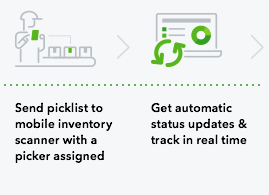
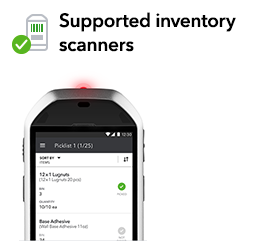
Download the Warehouse Manager App
To get the app, select your device:Below are links to view some options for purchasing a scanner:
- Purchase from CDW.com
- Purchase from BarcodeGiant.com
- Purchase from POSguys.com
- Purchase from BarcodeArena.com – for refurbished models
Set up the MC40 scanner and connect it to your wifi:
- Power on the scanner using the button on the top left corner of the scanner.
- Swipe upward on the screen to unlock the device.
- Touch the settings button on the bottom left of the screen.
- Click into the Security settings and enable the “Unknown sources" option.
- Click into the Wifi settings and connect the scanner to your company's wifi network (we'll need this to download and install the app and to allow it communicate with QuickBooks).
Install the App on the MC40 scanner:
- Type this URL into the phone or scanner’s browser: http://bit.ly/eswma (this is case-sensitive).
- You may see a message that says We're sorry, this file format is not supported. Just click the Download button.
- Click the download complete notification to start the install. (If you see a message Install Blocked, touch the Settings button on the message or follow step 4 above).
- The QuickBooks Desktop Warehouse install screen will open.
- Select Install.
- Select Done when it says App Installed.
Install the App on an Android Phone:
- Visit the app's page in Google
Play.
- Make sure you sign in with the same Google account that you use for Google Play on your Android device.
- Click the green Install button.
- Select the device you wish to use. If the device is connected to the internet, the app should download and install shortly.
You’re now ready to go back to Enterprise Solutions and pair your device with QuickBooks. (The pairing screen is located in the Preferences – Items and Inventory – Company Preferences – Advanced Inventory screen on the Site Operations tab.)